
You are here
Create a Remote from Template
You can use another remote as a template when creating a new remote. This can be the fastest way to get a working remote. The templates may hold background image as well as button layout and IR codes. But you can also only use the background image from the template (see below).
Templates are available from several sources:
- from a set of built-in templates
- from your remotes already created on this device
- from remotes served by a iRed2 server nearby, if there. This is special, please see screenshots down on this page.
- from a website which holds remotes (even your own PC or Mac can do this!)
Copy any local remote to be used as new remote
- Choose any remote of your remotes section
- Enter into edit mode by tapping the Edit button at top right
- Tap the Share button at the bottom right
- Choose Copy to new Remote
- The remote will be copied, the name is selected to be immediately changed
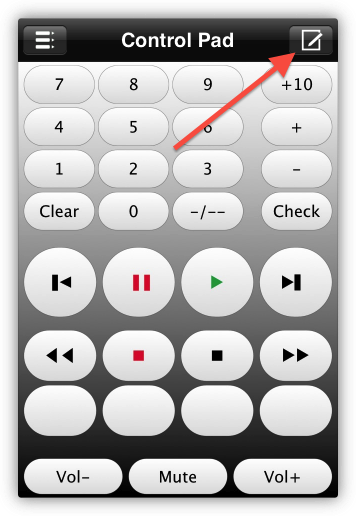
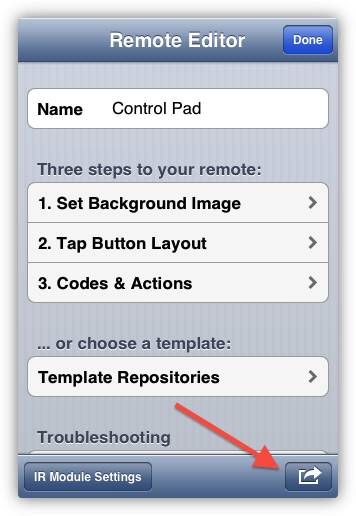
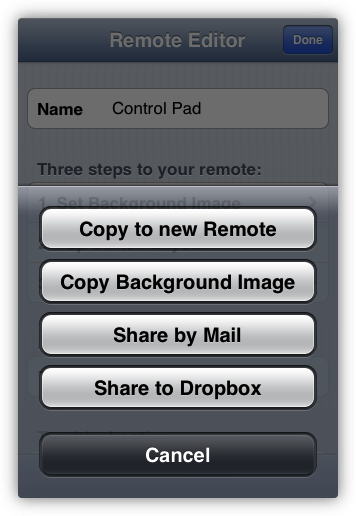
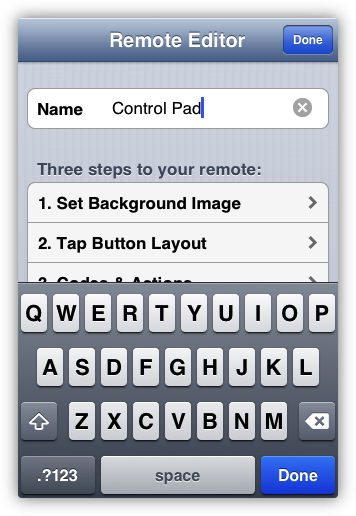
To use any online remote as a template ...
- Select any remote from the online section or from iRed2 section
- Tap the gear icon at top right
- Choose Copy -> Remotes
- That's it, the gear icon has changed to the edit icon!
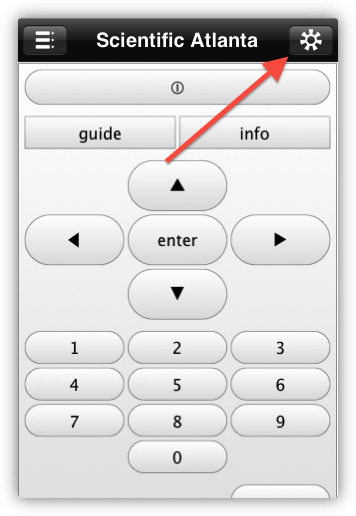
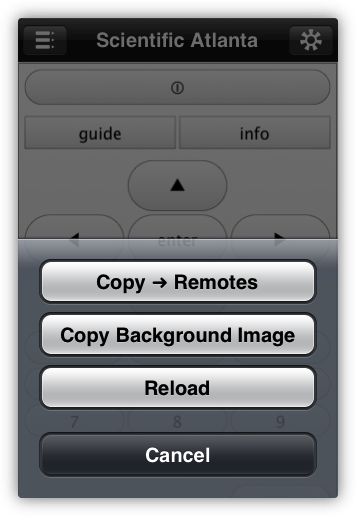
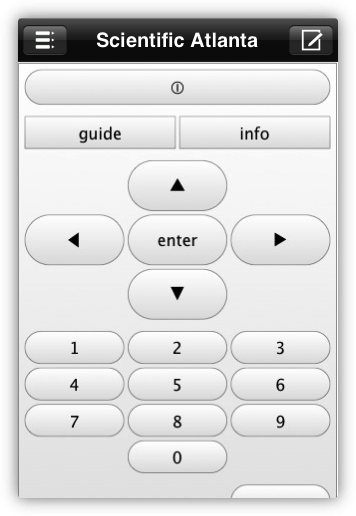
Use Template when you create a new remote
- Go to your Remotes list
- Tap Edit
- Tap "+"
- Enter the name of the new remote
- Tap "Done" down on the keyboard
Unitl now, these steps are identical to the creation from scratch. We are here:
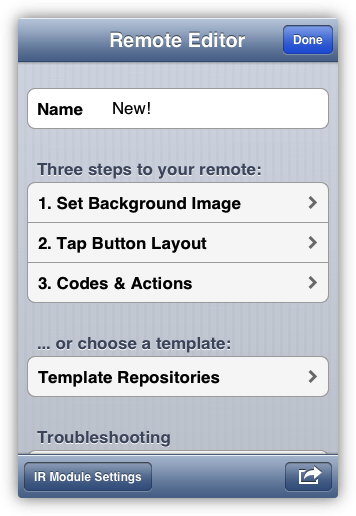
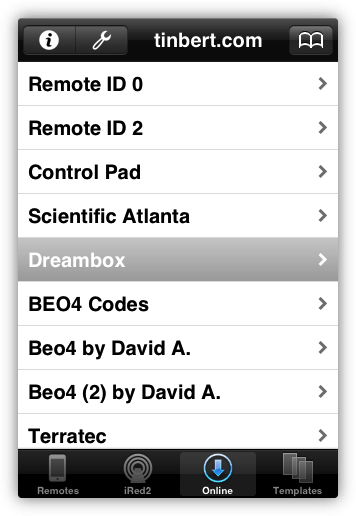
Now tap "Template Repositories" at the bottom. You'll see the templates, organized in 4 sections:
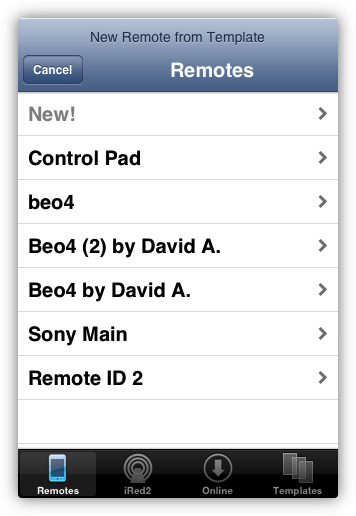
The first section shows all Remotes that you have already created. That's an easy way to make a copy of a remote with different codes, e.g.
The next two sections require online access:
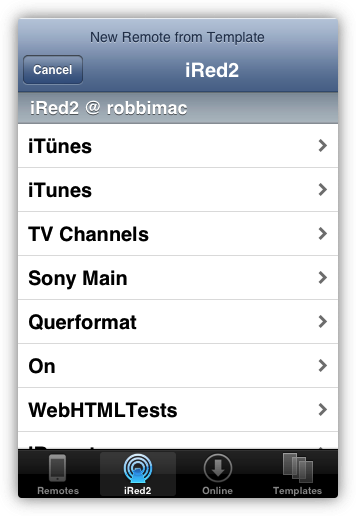
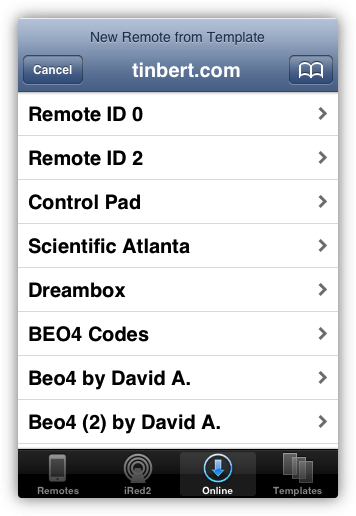
The iRed2 section makes only sense, if you have a iRed2 application running on your Mac. All remotes which are in iRed2's Online Favorites section are visible here.
The Downloads section holds all remotes from tinbert.com's server. This list will eventually grow - with your kind assistance: On the first Remote Editor page you'll see the Sharing button at the bottom right. Tap this and you can send me (or others) your favorite remote by mail.
The last category holds Templates, i.e. remotes especially meant to be templates:
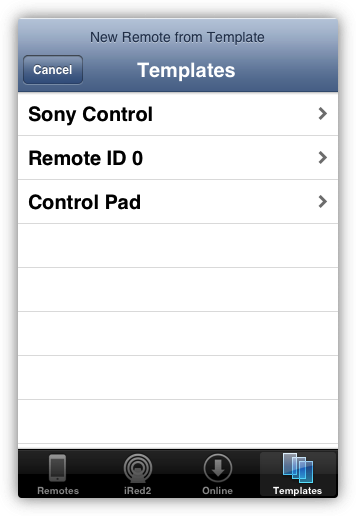
You can extend the list of online servers by your own, too. Please see this chapter on how to create a Online Server.
Choose Remote
If you somewhere found your remote to be used as a template, tap it's name, then "Choose":
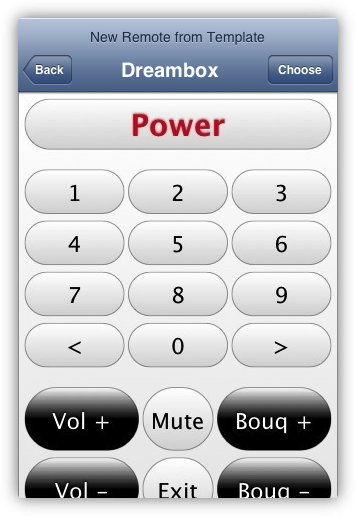
Now you can immediately use the remote or edit it as usual. This screenshot shows that all buttons are already laid out and have IR codes as well:
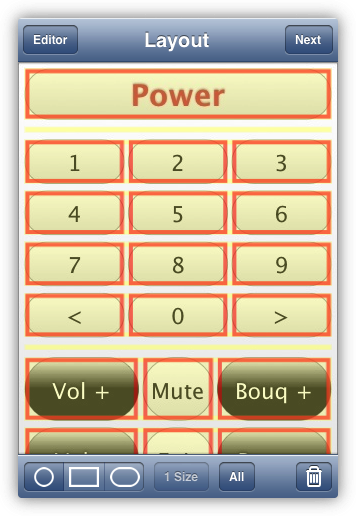
Use Background Image from Template
You don't need to use layout and all codes from templates, but you can also use only the background image from a template:
- Create new remote in remotes list
- Name the remote
- Tap "Done" right down on the keyboard
- Tap "Background Image"
- Tap "Remotes"
This is the situation just before tapping "Templates", the next one ist the already known remote chooser with a slightly different title bar:
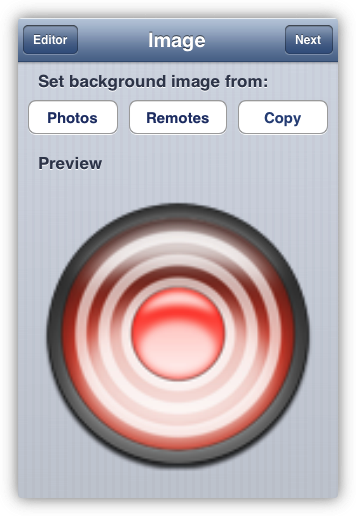
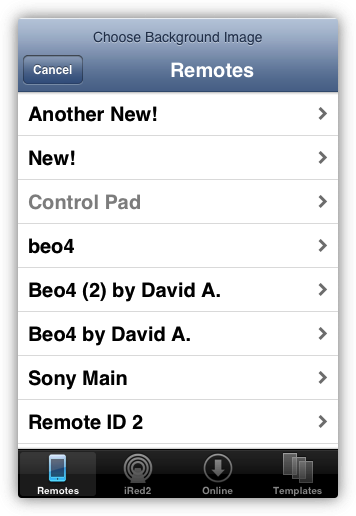
You can also select any remote, then enter the editor and tap the Share button at the bottom right. Then tap Copy Background Image and use this copy in your new remote:
Use iRed2 remotes as template
As you may know you can create beautiful remotes with iRed2. Photo remotes, too, but you can also create remotes with gradients, fonts, colors, ...
To use one of your iRed2 remotes as a template in iRedTouch, you need to first make it available in your iRed2 app. This is done by dragging the remote into the "Online Favorites" section on the main window:
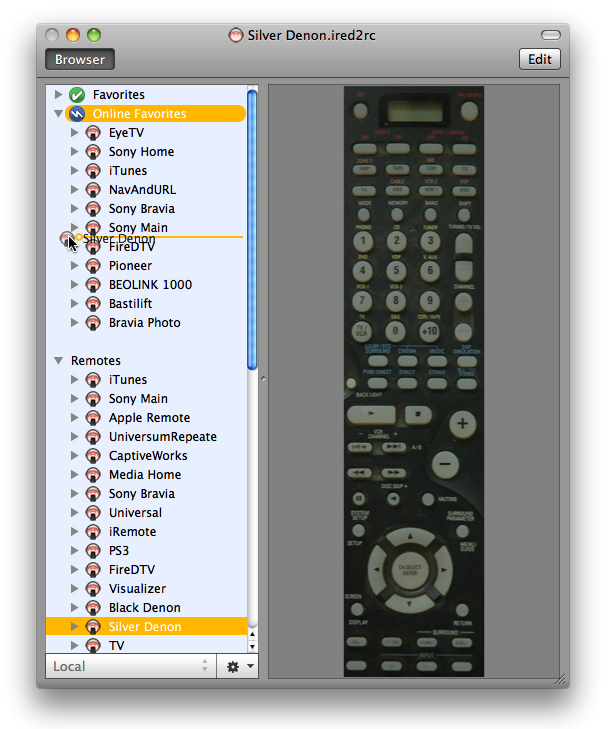
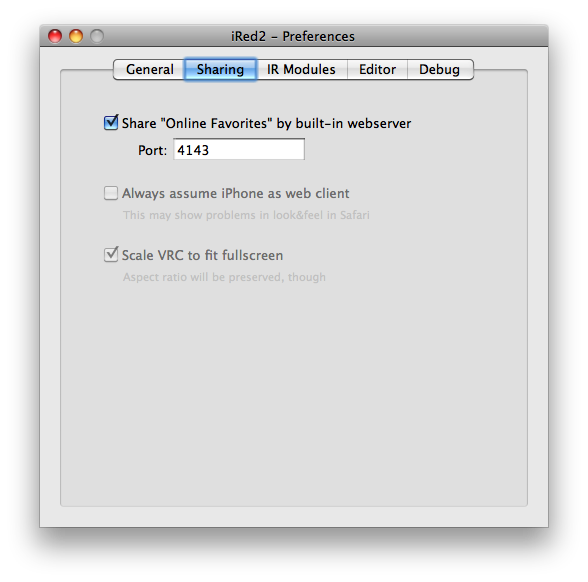
You must also check "Share Online-Favorites..." in iRed2's preferences.
Back in iRedTouch, switch on "Connect" in the "iRed2" section in Settings:
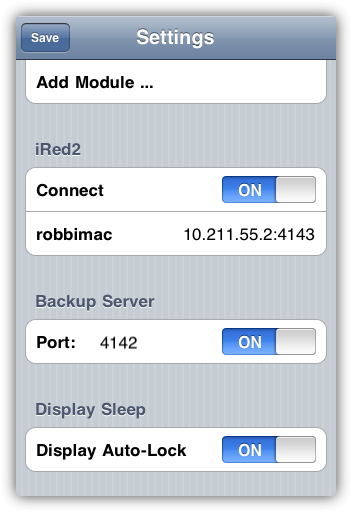
Now, all iRed2 remotes will be visible in their own section or just below your remotes on the iDevice:
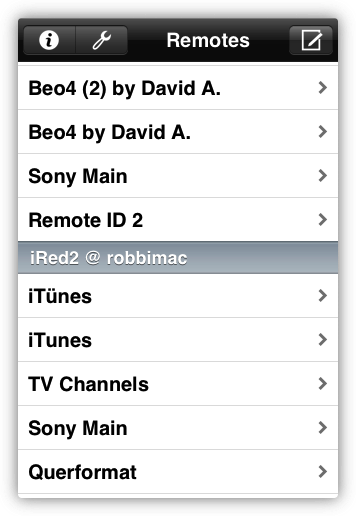
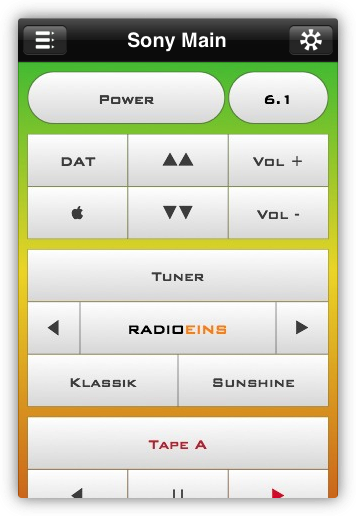
To copy this remote, tap the gear icon, than Copy -> Remotes.
Please note that only IR Codes are copied over. Especially AppleScripts need to be run on the Mac, so they will not be copied.